 CYBRARY
 See it work on a real attack
Five steps, all read live from the estate you pick — the detections it raised, the attack step behind each, what our analyst makes of it, the case that answers it, and what we do not cover. Nothing on this page changes anything.
Pick an estate to walk. Every lab and scenario runs its own world with its own SIEM — there is no shared one, so a demo is always somebody's actual estate.
Rewind and branch
Go back to a decision and try another way
Before a big move — isolating a host, disabling an account, restoring a backup — Forge keeps a decision point. Rewind to it, make a different call, and compare the branches side by side: score, objectives and time to containment on one decision tree.
- Decision tree: every path in its own lit lane, with a fork where a branch splits off and a pulse on the best outcome.
- Key moments: every branch point and saved decision point with its time — click one and all the replays jump there.
- Replays side by side: up to four paths playing together on one clock, from 1× to 64×.
- Outcome comparison: score, findings, objectives and time to containment for each path, as rings and side-by-side bars.

Available in the graded labs behind these cases, which open a Forge lab desktop. The read-only SOC screen itself has no run to rewind.
Branch outcomes are emulated inside the lab, not proof about a real network. Not available in Arena events, assessments or team rooms yet.
Runnable procedures
Change a procedure, rehearse it, keep the result as evidence
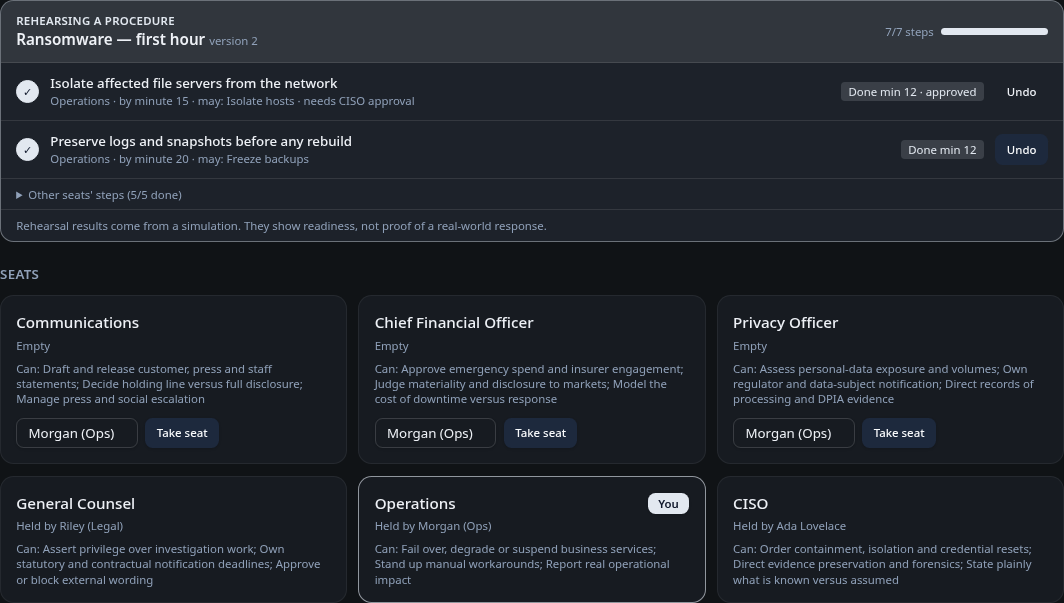
Your incident procedure becomes roles, ordered steps, what each seat may do and who must approve. Every new version is flagged for a Crisis Sim rehearsal, each step is scored on time, late, skipped or missing its approval, and readiness is tracked version by version.
For leaders
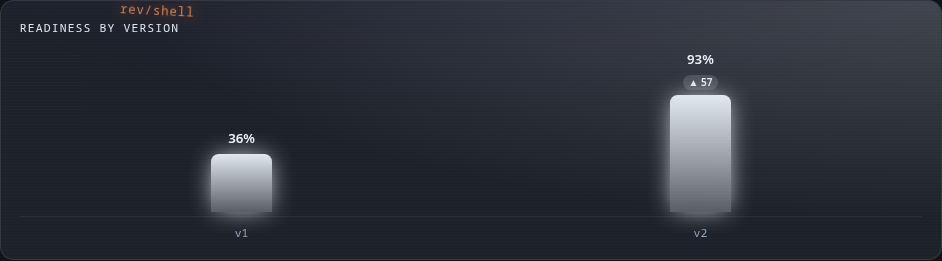
Is our plan getting better?
- Readiness per procedure version, with the change that moved it
- A dated record of every rehearsal to share with the board
- See which approvals slow the response before a real incident does
For responders
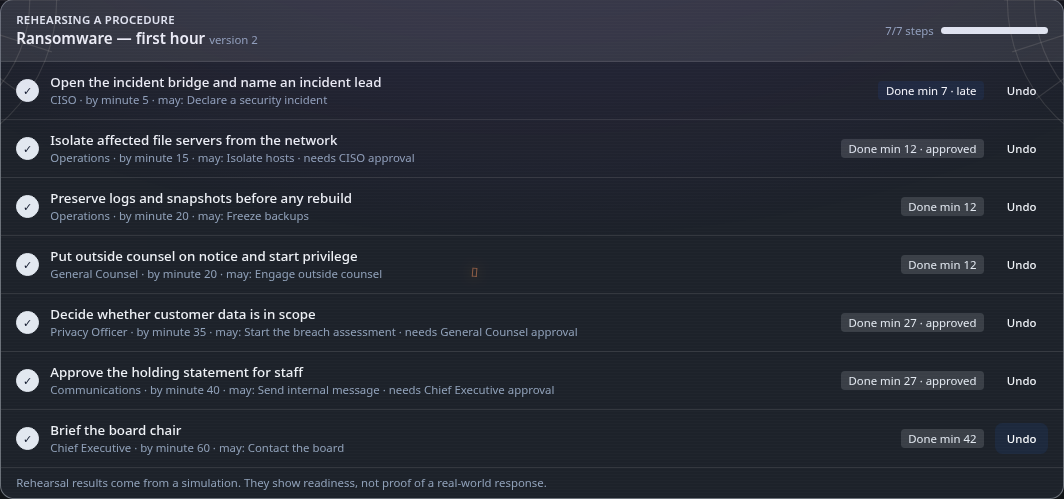
What do I do, and when?
- Your steps, your seat and the minute each one is due
- Exactly what you're allowed to do, and who has to sign off
- Rehearse the version you'll actually use, not last year's
1. Write or paste
Build steps by hand, or paste your runbook and Forge AI proposes them. A person approves.
2. New version
Every change is a new version with a step-by-step diff, and admins are told a rehearsal is due.
3. Rehearse
Link a Crisis Sim room: each seat ticks its own steps on the room clock and approvers sign off in the room.
4. Score
On time, late, skipped or missing approval — scored the same way every time, no AI in the score.
5. Evidence
Readiness per version, so you can see whether the change helped.
- Roles, permissions and approvals on every step
- Versioned, with a diff of what changed
- Rehearsal flagged on every new version
- Deterministic step scoring — no AI in the score
- Readiness trend across versions
- AI only drafts; a person approves
Your triage and escalation steps can be written as a procedure and rehearsed in Crisis Sim alongside these cases.
Rehearsal results come from an emulated exercise. They show readiness, not proof of a real-world response.
See a procedure rehearsal in a demoRemote Assist
Help someone mid-lab, with their permission
Managers, company admins and Cybrary staff can ask to see a learner's lab and guide them. The learner presses Allow to share the screen and allows control separately; requests expire after a minute and every step is logged.
Available once a case opens its lab desktop. The SOC screen is read-only, so there is nothing to drive there.
Only the emulated lab is shared. Remote Assist works in any lab desktop; it is off in Arena events.
Open Remote Assist